How to Install Google Chrome in Windows 10 PC or Laptop — Complete Step-by-Step Guide
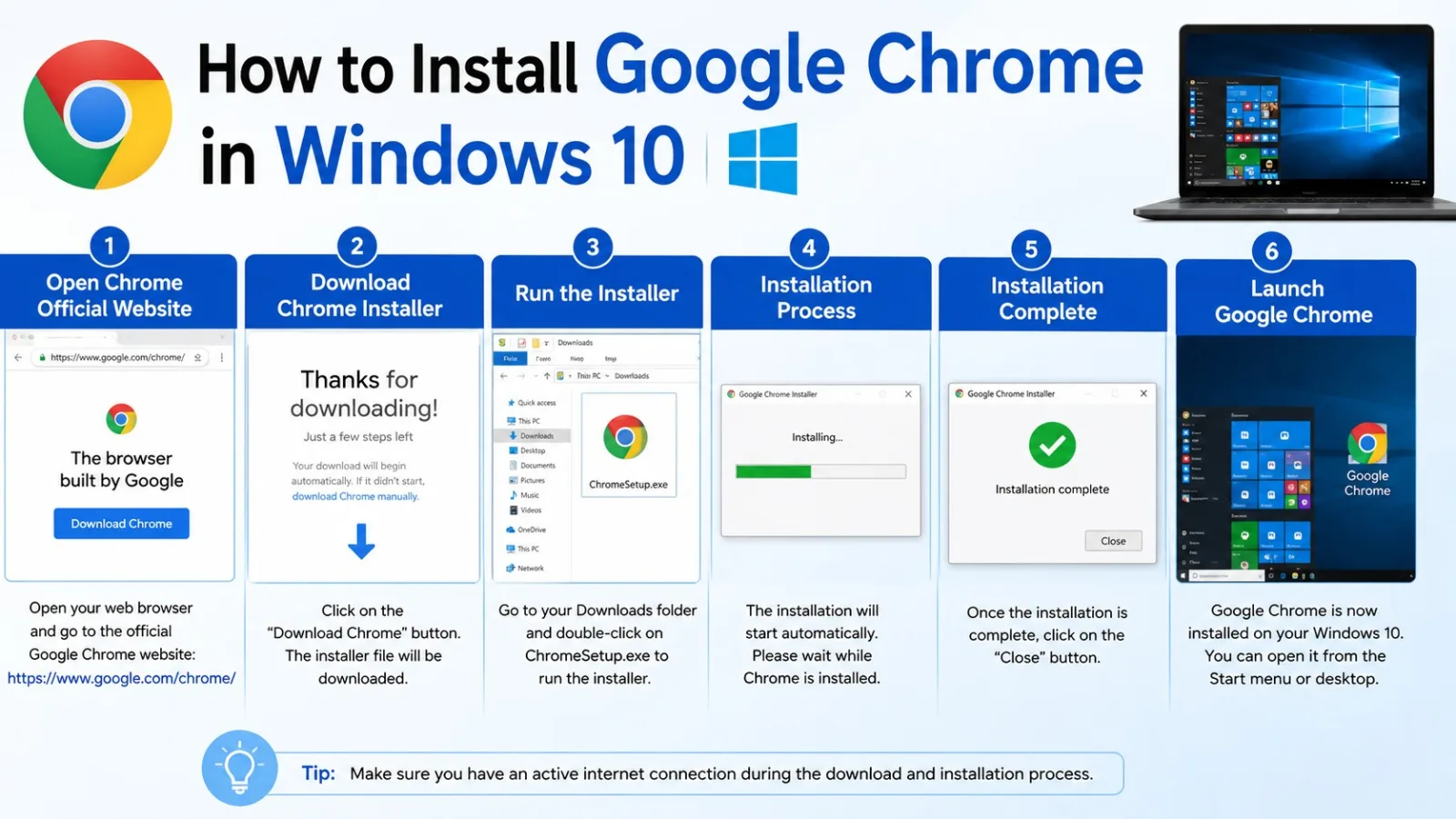
Google Chrome is undoubtedly the most popular web browser in the world. With its lightning-fast performance, clean interface, powerful extensions, and seamless Google account integration, it has become the go-to browser for millions of users worldwide. If you have recently bought a new Windows 10 PC or laptop, or if you have just reinstalled Windows, you may notice that Google Chrome is not pre-installed. In this detailed guide, we will walk you through the complete process of downloading and installing Google Chrome on your Windows 10 PC or laptop — step by step, with screenshots and tips.
Why Should You Use Google Chrome?
Before we get into the installation steps, let us understand why Google Chrome is the preferred choice for most Windows users:
- Speed: Chrome is known for its blazing-fast page loading speed.
- Security: Chrome regularly updates itself to protect you from malware and phishing attacks.
- Extensions: The Chrome Web Store offers thousands of free extensions to enhance your browsing experience.
- Sync: Sign in with your Google account to sync bookmarks, passwords, history, and settings across all devices.
- Developer Tools: Chrome has powerful built-in developer tools for web developers.
- Compatibility: Chrome supports all modern web technologies and works with almost every website perfectly.
What You Need Before Installing Google Chrome
Before you start the installation process, make sure you have the following:
✅ A Windows 10 PC or Laptop (32-bit or 64-bit)
✅ A working internet connection
✅ Microsoft Edge browser (comes pre-installed with Windows 10)
✅ Administrator access on your PC
Good news: You do NOT need any CD, DVD, USB drive, or any paid software to install Google Chrome. The entire process is completely free!
Step-by-Step Guide to Install Google Chrome on Windows 10
STEP 1 — Open Microsoft Edge Browser
Since Google Chrome is not installed on your PC yet, you will need to use another browser to download it. Microsoft Edge comes pre-installed with Windows 10 and is the perfect tool for this purpose.
➤ Click on the
Start Menu
at the bottom-left of your screen
➤ Search for
"Microsoft Edge"
and click to open it
➤ Or find the
Edge icon
(blue wave icon) on your taskbar and click it
Microsoft Edge will open and you will see the homepage or a new tab page.
STEP 2 — Search for Google Chrome
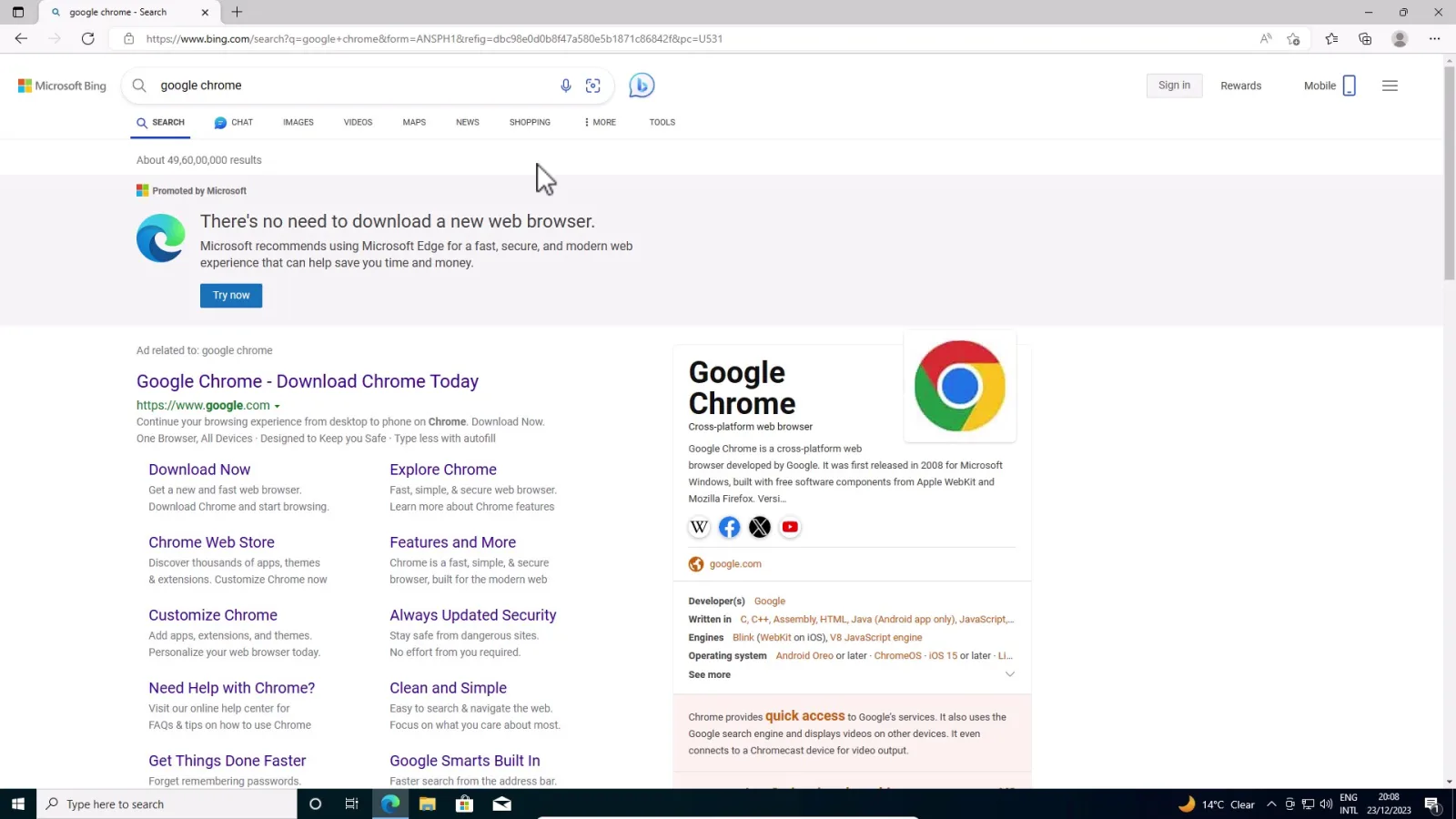
Now that Microsoft Edge is open, it is time to search for the Google Chrome installer.
➤ Click on the
address bar / search bar
at the top of Microsoft Edge
➤ Type
"Google Chrome"
and press the
Enter key
on your keyboard
➤ Search results will appear with multiple links
STEP 3 — Open the Official Google Chrome Website
This is a very important step. Always make sure you download Google Chrome from the official Google website only — never from third-party websites.
➤ Look for the first link in search results — it should be from
google.com/chrome
➤ Click on that
first official link
➤ The official
Google Chrome download page
will open
Important: The official website URL should be www.google.com/chrome — verify this in the address bar before downloading.
STEP 4 — Download Google Chrome
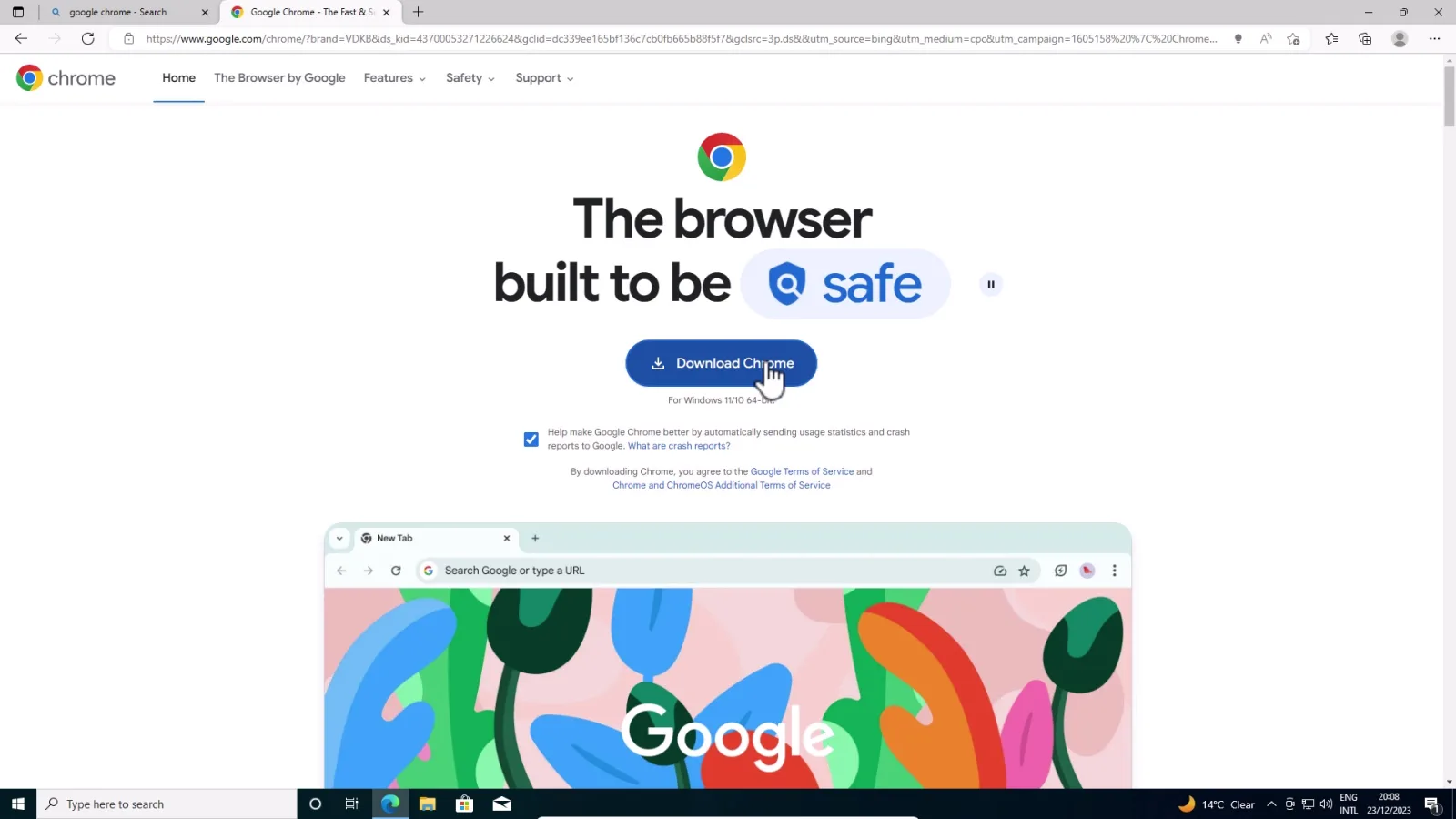
Now you are on the official Google Chrome download page.
➤ You will see a large blue button that says
"Download Chrome"
➤ Click on the
"Download Chrome"
button
➤ A small popup may appear asking you to agree to Google's Terms of Service
➤ Click
"Accept and Install"
or
"Download Chrome"
to proceed
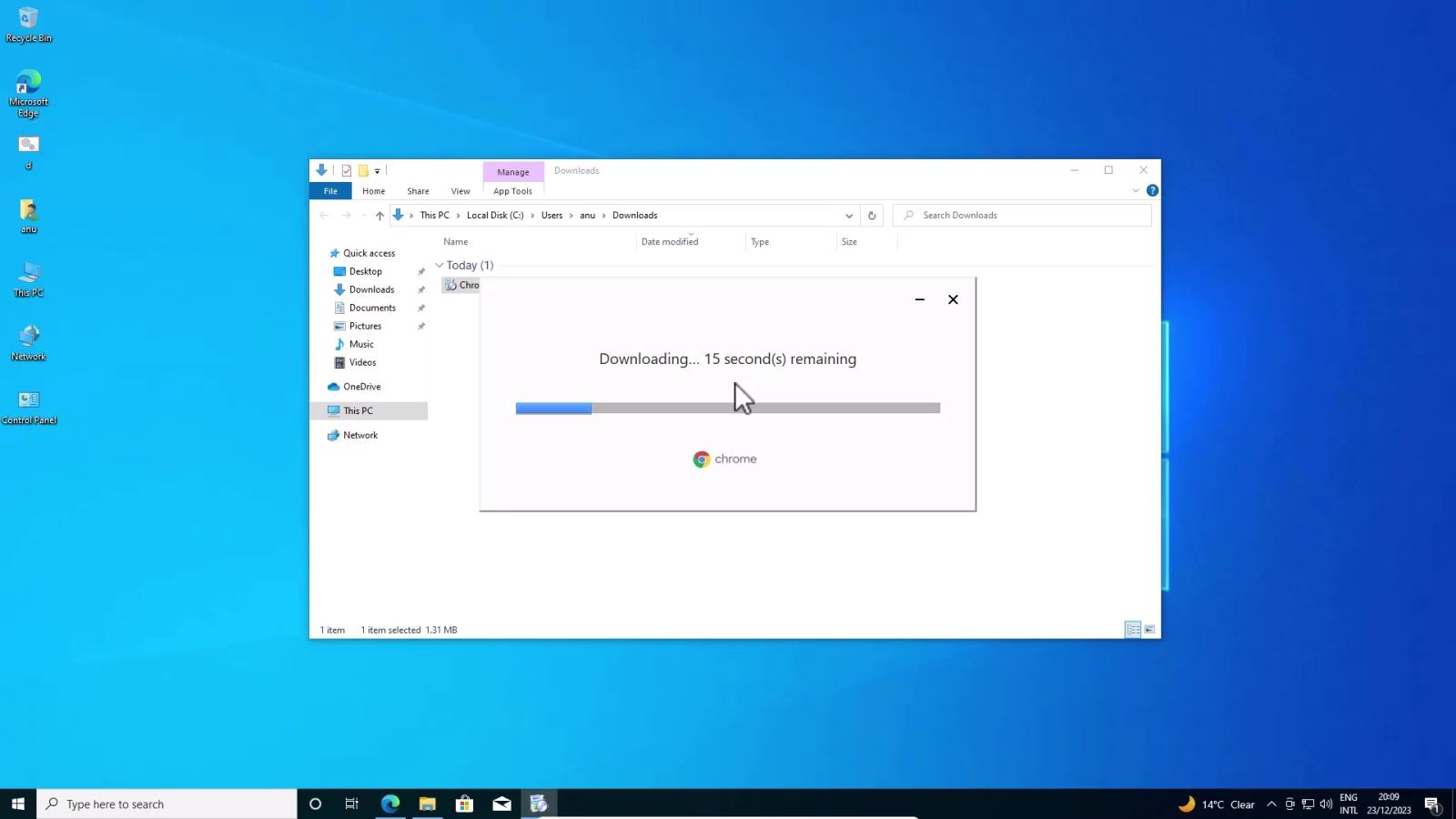
➤ The Chrome installer file (ChromeSetup.exe) will start downloading
STEP 5 — Find the Downloaded File
Once the download is complete, you need to locate the downloaded installer file.
➤ In Microsoft Edge, click on the
three dots (⋮)
in the top-right corner
➤ Click on
"Downloads"
from the dropdown menu
➤ You will see the downloaded
ChromeSetup.exe
file
➤ Click on
"Open file"
or
"Show in folder"
next to the downloaded file
Alternatively, you can press Ctrl + J in Microsoft Edge to directly open the Downloads section.
STEP 6 — Run the Chrome Installer
Now it is time to run the installer file to begin the installation.
➤ Double-click on the
ChromeSetup.exe
file
➤ A Windows security popup will appear asking:
"Do you want to allow this app to make changes to your device?"
➤ Click
"Yes"
to allow the installation to proceed
STEP 7 — Google Chrome Installation Begins
Once you click Yes, Google Chrome will automatically start the installation process.
➤ Chrome Setup will connect to the internet
➤ It will automatically download the latest version of Google Chrome
➤ The installation will happen automatically in the background
➤ A small installation progress window may appear
➤
Wait patiently
— the entire process takes less than 2 minutes depending on your internet speed
You do not need to click anything during this step. Chrome handles everything automatically.
STEP 8 — Google Chrome Opens Automatically
Once the installation is complete, Google Chrome will open automatically on your screen. You will see the Chrome welcome screen.
➤ Chrome is now successfully installed on your Windows 10 PC! ✅
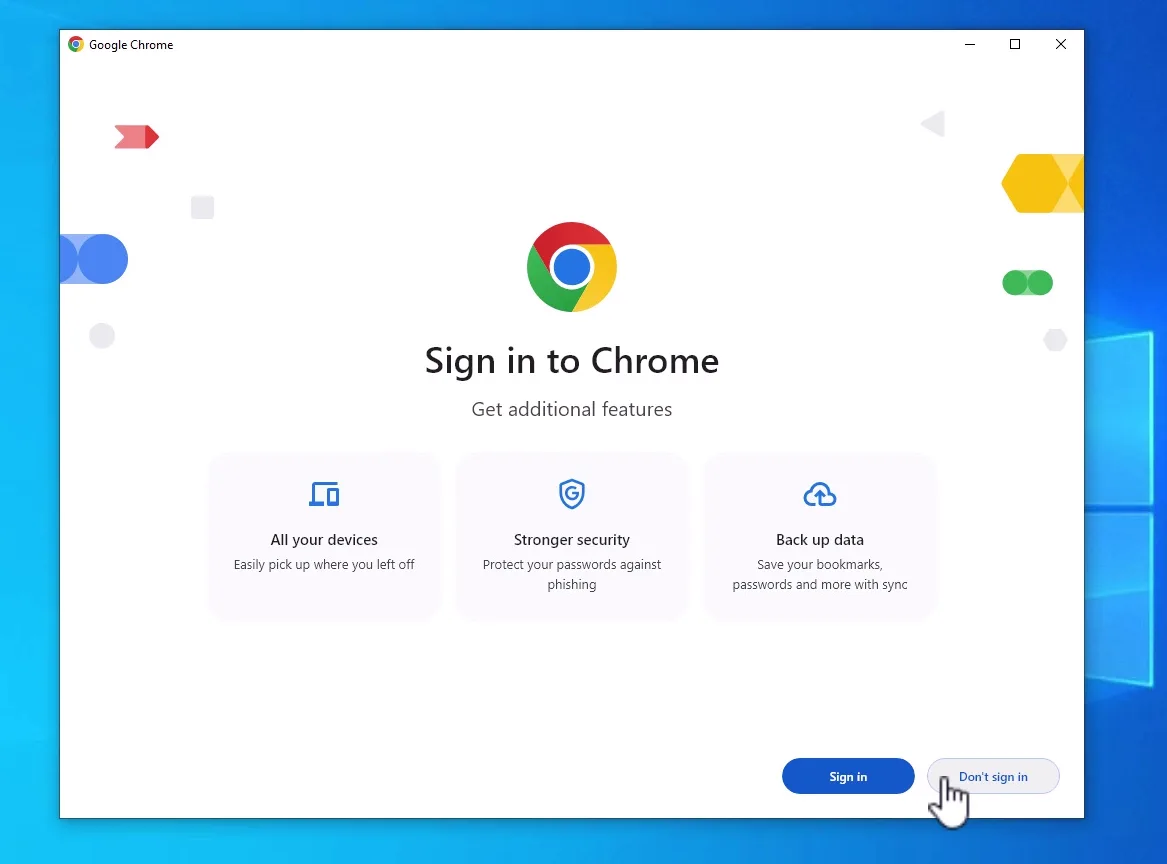
STEP 9 — Sign In to Google Chrome (Optional)
After Chrome opens, it will ask if you want to sign in with your Google account. This is completely optional.
If you want to sign in:
➤ Click
"Sign in"
➤ Enter your Google account email and password
➤ Your bookmarks, history, passwords, and settings will sync automatically
If you do NOT want to sign in:
➤ Click
"Skip"
or
"Continue without an account"
➤ You can still use Chrome without signing in
STEP 10 — Start Browsing!
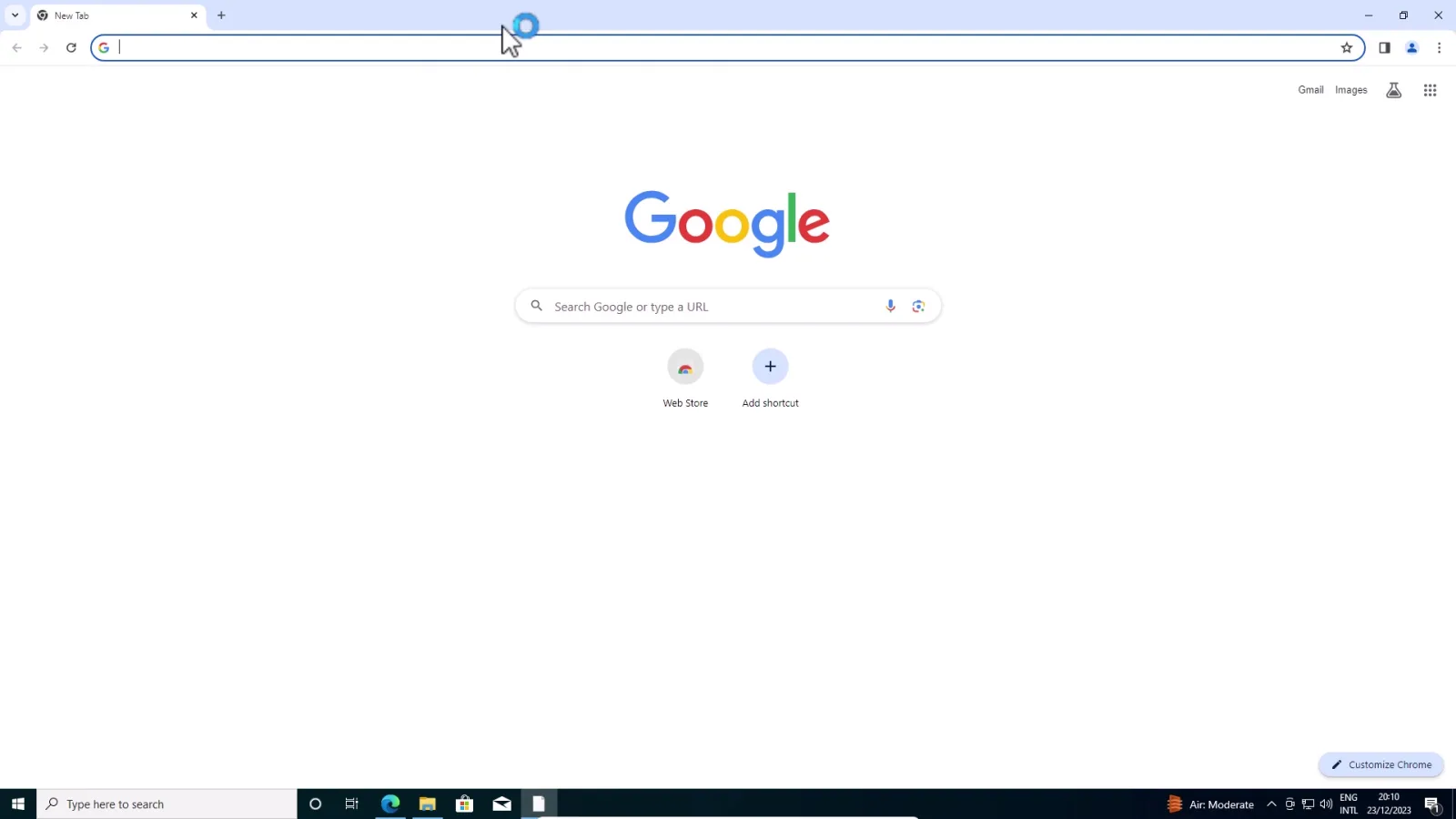
Chrome is ready to use! You can now:
➤ Click
"Got it"
on the welcome screen
➤ Type any website address or search query in the address bar
➤ Press
Enter
and start browsing the internet
How to Set Google Chrome as Default Browser
If you want to make Google Chrome your default browser so that all links open in Chrome automatically, follow these steps:
➤ Open Chrome → Click the
three dots (⋮)
in the top-right corner
➤ Go to
Settings
➤ Click on
"Default browser"
in the left menu
➤ Click
"Make default"
➤ Windows Settings will open → Select
Google Chrome
as the default browser
Common Problems & Solutions
Problem 1: Chrome Download is Slow
Solution: Check your internet connection. Try downloading during off-peak hours for faster speeds.
Problem 2: ChromeSetup.exe Not Running
Solution: Right-click on the file → Click "Run as Administrator" → Click Yes.
Problem 3: Chrome Installation Stuck
Solution: Close the installer, disable your antivirus temporarily, and try running ChromeSetup.exe again.
Problem 4: Chrome Not Opening After Install
Solution: Restart your PC and try opening Chrome again from the Start Menu or Desktop shortcut.
Problem 5: No Desktop Shortcut Created
Solution: Go to Start Menu → Search "Google Chrome" → Right-click → Send to → Desktop (Create shortcut).
How to Update Google Chrome
Keeping Chrome updated is important for security and performance.
➤ Open Chrome → Click the
three dots (⋮)
➤ Go to
Help → About Google Chrome
➤ Chrome will automatically check for updates
➤ If an update is available, click
"Update Google Chrome"
➤ Click
"Relaunch"
after the update is complete
Frequently Asked Questions (FAQ)
Q1. Is Google Chrome free to download?
Yes, Google Chrome is completely free to download and use on Windows 10.
Q2. Does Chrome work on both 32-bit and 64-bit Windows 10?
Yes, Chrome automatically detects your system type and installs the correct version.
Q3. Do I need to uninstall Microsoft Edge before installing Chrome?
No, you can have both browsers installed at the same time on Windows 10.
Q4. How much space does Google Chrome require?
Google Chrome requires approximately 200-300 MB of free disk space.
Q5. Can I use Chrome without a Google account?
Yes, you can use Chrome without signing in to any Google account.
Q6. Is Chrome safe to download from the official website?
Yes, downloading from google.com/chrome is completely safe and verified.
Conclusion
Installing Google Chrome on Windows 10 is an extremely simple and quick process that takes less than 5 minutes. All you need is an internet connection and Microsoft Edge — which is already available on every Windows 10 PC. By following the 10 steps mentioned in this guide, you can successfully download, install, and start using Google Chrome on your Windows 10 PC or laptop without any issues.
Whether you are a student, a professional, or a casual internet user, Google Chrome offers the best browsing experience with its speed, security, and powerful features. Go ahead and install Chrome today — you will not be disappointed!
Did this guide help you? Share it with your friends and family who are trying to install Google Chrome on their Windows 10 PC!
Tags: Google Chrome, Windows 10, Install Chrome, Chrome Download, Chrome Setup, Browser Installation, Windows Tutorial, Tech Guide
Comments
Login with Facebook